How to use

How to use TubeDetox

TubeDetox helps you manage and watch your YouTube playlists and subscriptions without comments, Shorts, or recommendations.

Note: A YouTube account (channel) is required. If you don’t have one yet, follow “Create a YouTube channel” below.

1. First-time setup

  • Open the app and sign in with Google from Settings.
  • Allow YouTube access when prompted.
  • Your playlists and subscriptions will sync after sign-in.

2. Playlists

  • Browse your playlists from the Playlists tab.
  • Search, rename, add, reorder, and remove videos.
  • Tap a video to open the player.

3. Latest videos & channels

  • Check new uploads from your subscriptions in Latest Videos.
  • Tap Update to sync (this can take longer with many subscriptions).
  • Open Subscribed Channels to browse each channel’s videos.

4. Playback

  • Change playback speed and move between videos.
  • The Lifetime Plan also supports lock screen and away-from-app playback.

5. Lock screen / background playback (Lifetime)

Audio does not keep playing automatically the moment you leave the screen. Please follow these steps:

  • Start playback in the app
  • Lock the screen or switch apps (playback may pause at this point)
  • Tap Play once on the lock screen or in Control Center
  • After that, playback should continue more reliably while locked or in another app

Note: Depending on your device and playback conditions, playback may pause and require a resume action.

6. Create a YouTube channel

TubeDetox requires a YouTube account (channel). If you don’t have one yet, create it in the YouTube app:

Step 1

Open the YouTube app and tap the account icon at the top right of the Home screen (far right).
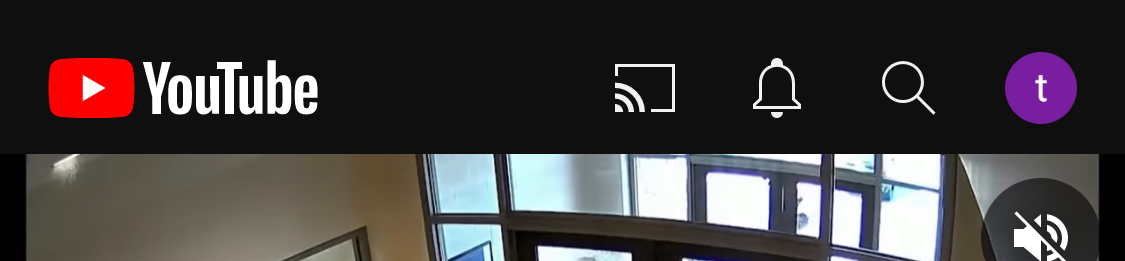
YouTube Home screen account icon

Step 2

Tap Channels in the menu (second item from the top).
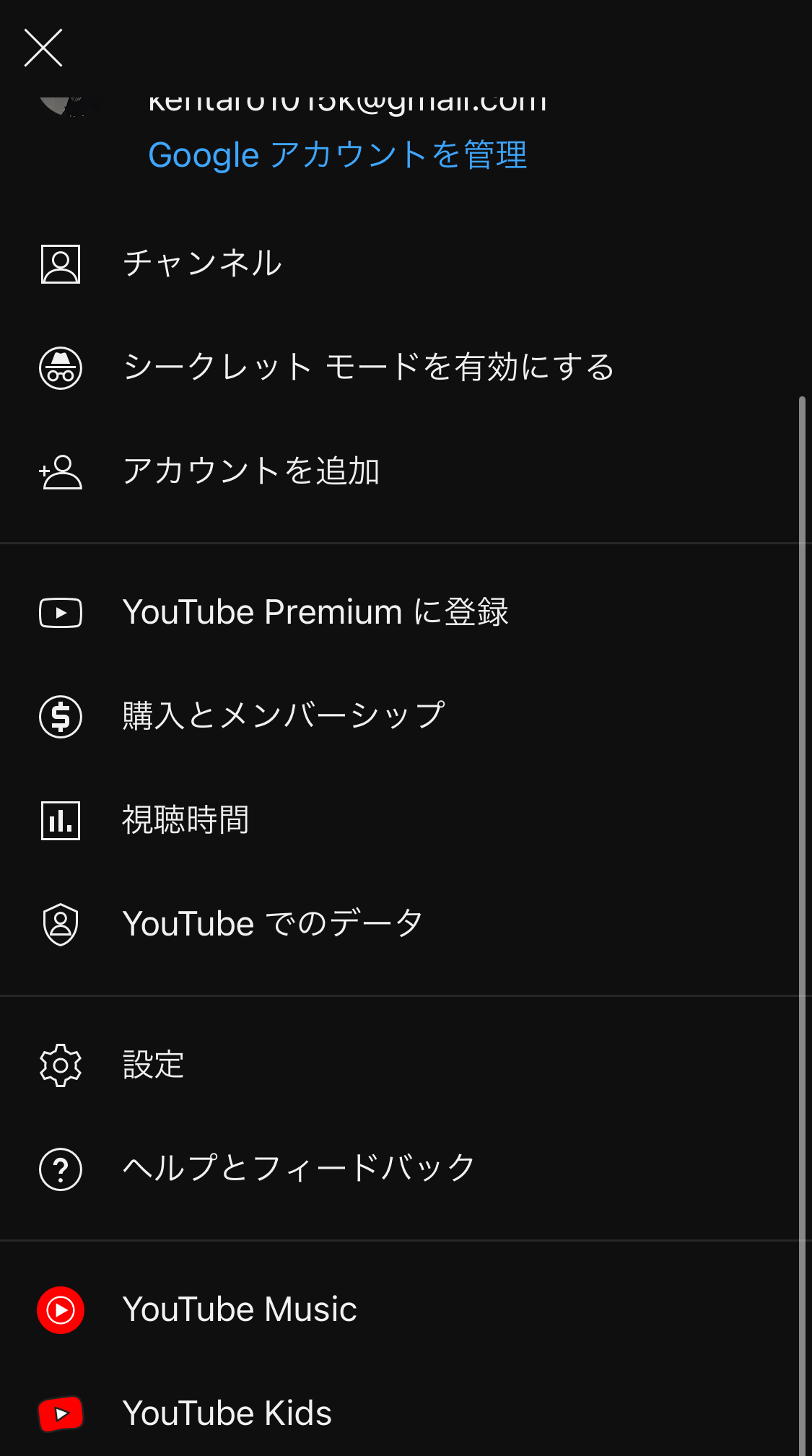
Channels item in the account menu
Second item from the top: Channels

Step 3

Enter the required fields and tap Create channel to finish.
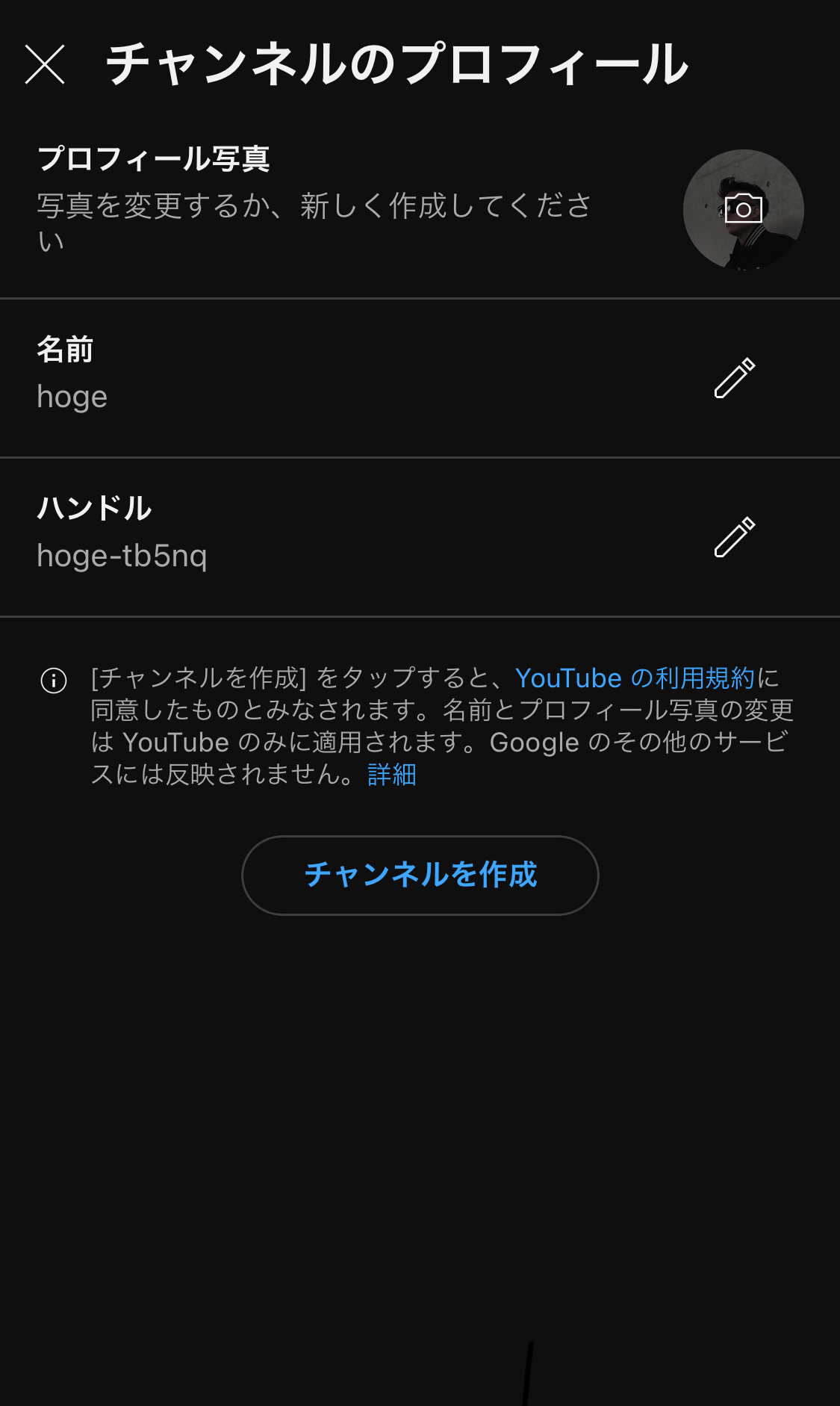
Create channel screen

7. FAQ (Q&A)

Answers to common questions.

Q. I can’t create a playlist

A. Creating a YouTube channel account enables playlist creation. See Create a YouTube channel.

Q. Are all YouTube videos in my playlists downloaded to my device?

A. No. Videos are not downloaded to the device. They remain items in your account playlists.

Q. I have a YouTube account, but the app says I don’t. How do I fix this?

A. Creating a YouTube channel account resolves this. See Create a YouTube channel.

8. Support

If you have questions, contact us from Settings in the app.